Windows 8 tips: get started
Windows
8 has been with us for well over a year now, and if you're used to
previous versions of Windows then you're going to notice that quite a
bit has changed. In fact, Windows 8 has seen the biggest change since
the jump from Windows 3.1 to Windows 95.
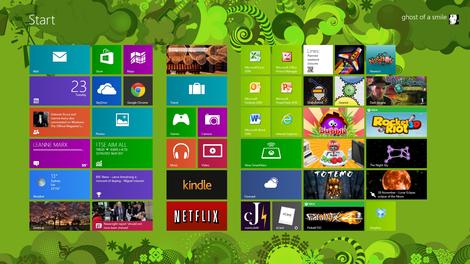
Out goes the Start menu,
in comes the new touch-oriented Start screen with new Windows 8-style
apps and new interface conventions. Even experienced PC users may be
left feeling a little lost.
- Windows 8: what you'll need to relearn
- Windows 8.1 review
Don't
despair, though, help is at hand. We've poked around every part of
Windows 8, uncovering many of its most important tips and tricks, so
read our guide and you'll soon be equipped to get the most out of
Microsoft's latest release.
1. Open from the lock screen
Windows 8 opens on its lock screen, which looks pretty but unfortunately displays no clues about what to do next.
It's
all very straightforward, though. Just tap the space bar, spin the
mouse wheel or swipe upwards on a touch screen to reveal a regular login
screen with the user name you created during installation. Enter your
password to begin.
2. Handle basic navigation
Windows 8's
interface is all colourful tiles and touch-friendly apps. And if you're
using a tablet then it'll all be very straightforward: just swipe left
or right to scroll the screen, and tap any tile of interest.
On a regular desktop, though, you might alternatively spin the mouse wheel to scroll backwards and forwards.
And
you can also use the keyboard. Press the Home or End keys to jump from
one end of your Start screen to the other, for instance, then use the
cursor keys to select a particular tile, tapping Enter to select it.
Press the Windows key to return to the Start screen; right-click (or
swipe down on) apps you don't need and select Unpin to remove them; and
drag and drop the other tiles around to organise them as you like.

3. Group apps
The
Start screen apps are initially displayed in a fairly random order, but
if you'd prefer a more organised life then it's easy to sort them into
custom groups.
You might drag People, Mail, Messaging and Calendar
over to the left-hand side, for instance, to form a separate 'People'
group. Click the 'minus' icon in the bottom right corner of the screen
to zoom out and you'll now find you can drag and drop the new group (or
any of the others) around as a block. Right-click within the block
(while still zoomed out) and you'll also be able to give the group a
name, which - if you go on to add another 20 or 30 apps to your Start
screen - will make it much easier to find the tools you need.
Windows
8.1 now provides a special Customise mode with much the same
functionality. Right-click an empty part of the Start screen, or swipe
up, tap Customise, then drag and drop tiles or rename app groups to
whatever you need.

4. Use the quick access menu
Right-click
in the bottom-left corner (or hold down the Windows key and press X)
for a text-based menu that provides easy access to lots of useful
applets and features: Device Manager, Control Panel, Explorer, the
Search dialog and more. Download the Win+X Menu Editor and you'll be
able to further customise the list with programs of your own.

5. Find your applications
The
Win+X menu is useful, but no substitute for the old Start menu as it
doesn't provide access to your applications. Press Ctrl+Tab, click the
arrow button at the bottom left of the Start Screen, or swipe up from
the bottom of the screen and a list of your installed programs will
appear. If you can't see what you need immediately, start typing an
application name to search for it. Or, in Windows 8.1, click the arrow
to the right of "Apps" to sort your programs by date installed, most
used, category or name.

6. Make access easier
If
there's an application you use all the time then you don't have to
access it via the search system. Pin it to the Start screen and it'll be
available at a click.
Start by typing part of the name of your
application. To access Control Panel, for instance, type 'Control'.
Right-click the 'Control Panel' tile on the Apps Search screen, and
click 'Pin to Start'. If you're using a touchscreen, press and hold the
icon, then flick down and select 'Pin to Start'.
Now press the
Windows key, scroll to the right and you'll see the Control Panel tile
at the far end. Drag and drop this over to the left somewhere if you'd
like it more easily accessible, then click the tile to open the desktop
along with the Control Panel window, and press the Windows key to return
you to the Start screen when you're done.
7. Shut down
To
shut Windows 8 down, just move the mouse cursor to the bottom right
corner of the screen, click the Settings icon - or just hold down the
Windows key and press I - and you'll see a power button. Click this and
choose 'Shut Down' or 'Restart'.
In Windows 8.1, press Win+X, click 'Shut down or sign out' and select the option you need.
Some
of the tricks available in previous versions of Windows still apply.
Press Ctrl+Alt+Del, for instance, click the power button in the bottom
right-hand corner and you'll be presented with the same 'Shut Down' and
'Restart' options.
And if you're on the desktop, press Alt+F4 and
you'll be able to choose 'Shut Down', 'Restart', 'Sign Out' or 'Switch
User' options.

Windows 8 tips: master the interface
8. Use the app bar
Windows
8 apps aim to be simpler than old-style Windows applets, which means
it's goodbye to menus, complex toolbars and many interface standards.
There will usually be a few options available on the App bar, though, so
if you're unsure what to do then either right-click an empty part of
the screen, press Windows+Z or flick your finger up from the bottom of
the screen to take a closer look.
9. Launch apps from the desktop
Windows
8 doesn't provide any obvious way to launch apps straight from the
desktop, but this is actually surprisingly easy to set up.
Right-click
on an empty part of your desktop, select New > Shortcut, and type
Explorer Shell:AppsFolder in the "Location" box. Click Next, enter a
name - "All Programs", for instance - and click Finish. Double-clicking
that shortcut will open a folder listing all your installed programs,
including the apps, and you can launch whatever you like.

10. See what's running
If
you launch a Windows 8 app, play with it for a while, then press the
Windows key you'll switch back to the Start screen. Your app will
remaining running, but as there's no taskbar then you might be wondering
how you'd ever find that out.
You could just press Alt+Tab, which shows you what's running just as it always has.
Holding
down the Windows key and pressing Tab displays a pane on the left-hand
side of the screen with your running apps. (To see this with the mouse,
move your cursor to the top left corner of the screen, wait until the
thumbnail of one app appears, then drag down.)
And of course you
can always press Ctrl+Shift+Esc to see all your running apps in the Task
Manager, if you don't mind (or actually need) the extra technical
detail.

11. Close an app
Windows
8 apps don't have close buttons, but this isn't the issue you might
think. Apps are suspended when you switch to something else so they're
only a very minimal drain on your system, and if you need the system
resources then they'll automatically be shut down. (Their context will
be saved, of course, so on relaunching they'll carry on where you left
off.)
If you want to close down an app anyway, though, move the
mouse cursor up to the top of the screen. When it turns from the regular
mouse pointer to the icon of a hand, hold down the left mouse button
and drag it down the screen. Your app should shrink to a thumbnail which
you can drag off the screen to close it.
If that's too much hassle, then simply pressing Alt+F4 still works.
And
when all else fails then press Ctrl+Shift+Esc to launch Task Manager,
right-click something in the Apps list and select End Task. Beware,
though, close something you shouldn't and it's easy to crash or lock up
your PC.
12. Hide the taskbar
If you run Windows 8 on a
tablet then it makes sense to keep your taskbar on the left, where it
takes minimal space and is best placed for easy thumb access. Switch
your tablet to portrait orientation, though, and you'll suddenly find
the taskbar grabs much more valuable screen real estate.
It
doesn't have to be this way, however - not if you install Surface
Taskbar Helper. This neat tool enables you to set the taskbar to "auto
hide" based on its current orientation, so for instance you can always
show it in landscape view, but hide it in portrait, which is a very
flexible way to get the most out of your display space.

13. Master Internet Explorer in Windows 8
Click
the Internet Explorer tile from the Start menu and you'll launch a
full-screen version without toolbars, menus or sidebars, which like so
much of Windows 8 may leave you initially feeling lost.
Right-click
an empty part of the page or flick your finger down from the top of the
screen, though, and you'll find options to create and switch between
tabs, as well as a Refresh button, a 'Find' tool and the ability to pin
an Internet shortcut to the Start page. Click the spanner icon and
select 'View on the desktop' to open the full desktop version of
Internet Explorer.

14. Spell check
Windows
8 apps all have spellcheck where relevant, which looks and works much
as it does in Microsoft Office. Make a mistake and a wavy red line will
appear below the offending word; tap or right-click this to see
suggested alternative words, or add the word to your own dictionary if
you prefer.
15. Run two apps side by side
Modern UI apps
are what Microsoft calls 'immersive' applications, which basically means
they run full-screen - but there are ways to view up to four at once.
On
Windows 8, swipe from the left and the last app you were using will
turn into a thumbnail; drop this, and one app displays in a sidebar pane
while your current app takes the rest of the screen. And you can then
swap these by swiping again.
Windows 8.1 expands on this and can
display up to four apps simultaneously, if you've enough screen space.
Move your mouse cursor to the top of the screen, and when it changes to a
hand icon, drag and drop your app to the left or right. Once you've
moved it enough, a dividing line will appear, you can drop the app, and
it'll appear in just that part of the screen. Use the bar between your
apps to resize their window widths, or if you need to make one
full-screen again.

16. Run as Administrator
Some
programs need you to run them with Administrator rights before they'll
work properly. The old context menu isn't available for a pinned Start
screen app, but right-click one, and if it's appropriate for this app
then you'll see a Run As Administrator option.
17. Make a large app tile smaller
You'll
notice that Windows 8 apps come in different tile sizes, and these
won't always be set up as you like (if you're not really interested in
Sports, say, you might prefer that tile to be small). In Windows 8,
right-clicking a tile displays 'Smaller' or 'Larger' options which you
can use to resize it. Or in Windows 8.1, right-click a tile, 'Resize'
and choose from one of four tile sizes: 'Large', 'Wide', 'Medium' and
'Small'.
18. Uninstall easily
If you want to hide an
unused app for now, select 'Unpin from Start'. The tile will disappear,
but if you change your mind then you can always add it again later.
(Search for the app, right-click it, select 'Pin to Start'.)
And, if you're sure you'll never want to use an app again, choose 'Uninstall' will remove it entirely.
Of
course, if you like to try out lots of apps then uninstalling them one
at a time can get a little tedious. If that becomes a problem, give
Windows App Boss a try - it enables you to select multiple apps and
remove them all at once.

19. Customise app privacy
It
is worth keeping in mind that by default Windows 8 apps can use your
name, location and account picture. If you're not happy with that, it's
easily changed. Press Win+I, click More PC Settings, select Privacy and
click the relevant buttons to disable any details you'd rather not
share.
The new Task Manager also includes a History feature that
tracks the CPU time used by every application. If you're wondering what
someone's doing most of the time on their Windows 8 system, launching
Task Manager (press Ctrl+Shift+Esc) and clicking the App History tab
will give you an idea. But if you don't want someone doing the same to
you, clicking App History > Delete Usage History will clear all the
figures.

20. Show administrative tools
Experienced
Windows users who spend much of their time in one advanced applet or
another are often a little annoyed to see their favourite tools buried
by Windows 8. Microsoft has paid at least some attention, though, and
there are ways to bring some of them back.
As we've mentioned,
pressing Win+X launches a menu with plenty of technical tools: 'Device
Manager', 'Network Connections', 'Computer Management' and more.
If
you need more power, open the Charm bar by flicking your finger from
the right-hand side of the screen and select 'Settings' then 'Tiles'.
Change 'Show administrative tools' to 'Yes' and click back on an empty
part of the Start screen. And it's as simple as that. Scroll to the
right and you'll find a host of new tiles for various key applets -
Performance Monitor, Event Viewer, Task Scheduler, Resource Monitor and
more - ready to be accessed at a click.

Windows 8 tips: increase productivity
21. Search everywhere
The
Windows 8.1 Search tool is no longer just about scanning your own
system. It's now integrated with Bing, delivering internet results and
(sometimes) even Wikipedia-style summaries of whatever you're searching
for.
To give this a try, launch the Charms bar, click Search, type
'Marilyn Monroe' and press Enter. As well as seeing any matches in your
own documents, pictures or videos, you'll get a picture, brief bio
(birth date, husbands, siblings, date and place of death), and links to
films, videos, albums and more.
That's just the start, though.
Swipe left (or spin the mouse wheel) and you'll find more pictures and
summaries for all the top 'Marilyn' search engine hits: IMDB, Wikipedia,
MarilynMonroe.com and Biography.com, as well as further links for
images, videos, related searches and more. Click any of these to open a
browser window at that site.
This extra search power can be very
useful, but if you'd prefer to keep desktop searches to your own system
then it's easily disabled. Launch the Charms bar, click Settings >
Change PC Settings > Search, and set 'Use Bing to search online' to
'Off'.

22. Install anything
Most
mobile platforms recommend you only install apps from approved sources
to protect your security, and Windows 8 is the same: it'll only allow
you to install trusted (that is, digitally signed) apps from the Windows
store.
If this proves a problem, though, and you're willing to
take the security risk (because this isn't something to try unless
you're entirely sure it's safe), then the system can be configured to
run trusted apps from any source.
It's all done via a single
Registry key, too. Just launch REGEDIT and set the value of the
HKEY_LOCAL_MACHINE\Software\Policies\Microsoft\Windows\Appx\AllowAllTrustedApps
key to 1.

23. Pin app contents to the Start screen
It's
easy to pin apps to the Start screen (right-click, select "Pin"), but
you don't have to stop there. Many apps also enable you to pin
particular content for easy access later.
If you want more ideas
for your upcoming holiday in Rome, for instance, you could open the
Travel app, right-click, select "Destinations" and choose the "Rome"
tile. And then repeat those steps every single time you revisit the
page. Or, alternatively, right-click your preferred Destination tile,
select "Pin...", and you'll be able to access it directly from the Start
screen.
Similarly, if you use the Mail app with multiple accounts
then just open these, and you can right-click to select separate live
tiles for each one - much more useful.

24. Log in automatically
WARNING: Your account will lose admin privileges as a result of this step
Of
course even if you remove the lock screen, you'll still be forced to
manually log in every time your system starts. This can also be resolved
at speed, though, using much the same technique as in previous versions
of Windows.
Hold down the Windows key, press R, type 'netplwiz' and press Enter to launch the User Accounts dialog.
Clear the "Users must enter a user name and password to use this computer" box and click OK.
Enter
the user name and password of the account that you'd like to be logged
in automatically, click OK, restart your system and this time it should
boot directly to the Start screen.
25. Use six apps at once
Launch
a Windows 8 app and it appears full-screen, which is fine on a small
tablet but not so impressive when you've got a 27-inch widescreen
monitor to fill.
Toolbox for Windows 8 helps out, though, by
bundling 12 common apps in a single package. You get a Facebook client,
browser, calculator, weather app, clock and more. And instead of always
appearing full-screen, you can run and interact with two, three, four,
even six of these tools, all at the same time.

26. Replace the Start menu
If
Windows 8's search and navigation tools still leave you pining for the
regular Start menu, installing the free Classic Shell will replace it
with something very similar.
Install it and you get the standard
menu of your installed programs, for instance, along with Search and Run
boxes, the Recent Items menu, and Windows 7-type shutdown options. And
it can make Windows 8 boot directly to the desktop, too.
Classic
Shell doesn't entirely ignore the modern UI world, though. A menu of
installed apps enables you to launch them from the desktop, and you can
alternatively switch to the Start screen with a click.

27. Learn Windows key shortcuts
- Win : switch between the Start screen and the last-running Windows 8 app
- Win + C : displays the Charms: the Settings, Devices, Share and Search options
- Win + D : launches the desktop
- Win + E : launches Explorer
- Win + F : opens the File Search pane
- Win + H : opens the Share pane
- Win + I : opens Settings
- Win + K : opens the Devices pane
- Win + L : locks your PC
- Win + M : minimises the current Explorer or Internet Explorer window (works in the full-screen IE, too)
- Win + O : toggles device orientation lock on and off
- Win + P : switch your display to a second display or projector
- Win + Q : open the App Search pane
- Win + R : opens the Run box
- Win + U : open the Ease of Access Centre
- Win + V : cycle through toasts (notifications)
- Win + W : search your system settings (type POWER for links to all power-related options, say)
- Win + X : displays a text menu of useful Windows tools and applets
- Win + Z : displays the right-click context menu when in a full-screen app
- Win + + : launch Magnifier and zoom in
- Win + - : zoom out
- Win + , : Aero peek at the desktop
- Win + Enter : launch Narrator
- Win + PgUp : move the current screen to the left-hand monitor
- Win + PgDn : move the current screen to the right-hand monitor
- Win + PrtSc : capture the current screen and save it to your Pictures folder
- Win + Tab : switch between running apps
28. Boot desktop apps faster
While
you can still set up desktop apps to load when Windows 8 starts, they
don't have the priority they once did. Quite the opposite, in fact -
Windows 8 delays their launch to ensure everything else starts more
quickly. This can make the system more responsive as your system boots,
but if you're switching straight to the desktop then it may slow you
down, so it may be worth turning off the delay, just to see if you can
spot any improvement.
Launch REGEDIT and browse to HKEY_CURRENT_USER\Software\Microsoft\Windows\CurrentVersion\Explorer\Serialize.
Create the Serialize key if it doesn't exist, and select it in the left-hand pane.
Right-click
in the right-hand pane, create a new DWORD value called
StartupDelayInMSec, and leave it set at zero (or, if a value is already
there, set it to zero).
Restart and the desktop apps will now
launch more quickly. Try three or four test boots to see if there's any
improvement, and if not, delete the StartupDelayInMSec value to restore
the default settings.

29. Launch programs fast
If
you're a fan of keyboard shortcuts and don't like the idea of scrolling
through app tiles to find the program you need, don't worry, Windows 8
still supports a useful old shortcut. Which is perfect if, say, you're
looking to be able to shut down your PC with a click.
Launch the desktop app, right-click an empty part of the desktop and click New > Shortcut.
Browse to the application you'd like to launch here. Or for the sake of this example, enter
shutdown.exe -s -t 00
to shut down your PC, or
shutdown.exe -h -t 00
to hibernate it, and click Next. Type a shortcut name - 'Hibernate', say - and click Finish.
Right-click
the shortcut, select Pin to Start and it should appear on the far right
of the Start screen - just drag the tile wherever you like.
30. Take intelligent screengrabs
If
a Windows 8 application is showing something interesting and you'd like
to record it for posterity, then hold down the Windows key, press
PrtSc, and the image won't just go to the clipboard: it'll also be
automatically saved to your My Pictures folder with the name
Screenshot.png (and then Screenshot(1).png, Screenshot(2).png and so
on).
You might hope that pressing Win+Alt+PrtSc would similarly
save an image of the active window, but no, sadly not. Maybe next time.
31. Default to Photo Viewer
Double-click
an image file within Explorer and it won't open in a Photo Viewer
window any more, at least not by default. Instead you'll be switched to
the full-screen Windows 8 Photos app - bad news if you thought you'd
escaped such hassles by using the desktop.
If you'd like to fix this, go to Control Panel > Programs > Default Programs and select Set your default programs.
Scroll down and click Windows Photo Viewer in the Programs list.
Finally,
click 'Set this program as default' if you'd like the Viewer to open
all the file types it can handle, or select the 'Choose default' options
if you prefer to specify which file types it should open. Click OK when
you're done.

Windows 8 tips: new options and features
32. Tweak SmartScreen
Windows
8 now uses Internet Explorer's SmartScreen system-wide, checking
downloaded files to ensure they're safe. This is a very good thing - a
report by NSS Labs revealed that IE10 blocks more malware than any other
browser - but if you have any problems then it can be tweaked.
Launch
Control Panel, open the Action Centre applet, and click Change Windows
SmartScreen Settings in the left-hand pane. Here you can keep the
warning, but avoid the requirement for administrator approval, or turn
SmartScreen off altogether. Make your choice and click OK to finish.
33. Set up Windows 8 File History
Windows
8 includes an excellent File History feature, which can regularly and
automatically back up your libraries, desktop, contacts and favourites
to a second drive (even a USB flash drive - just connect it, and choose
'Configure this drive for backup using File History' from the menu).
To
set this up, go to Control Panel > System and Security > File
History. Click Exclude Folders to help define what you're saving,
Advanced Settings to choose the backup frequency, Change Drive to choose
the backup destination, and Turn On to enable the feature with your
settings.
And once it's been running for a while, you can check on
the history for any file in Explorer by selecting it, choosing the Home
tab and clicking History.

34. Use VHD - enhanced
Windows
7 added support for creating and attaching virtual hard drives in
Microsoft's VHD format. Now Windows 8 extends this with the new VHDX
format, which improves performance, extends the maximum file size from 2
to 16TB, and makes the format "more resilient to power failure events"
(so they shouldn't get corrupted as easily). Launch the Computer
Management Control Panel applet, choose Disk Management, and click
Actions > Create VHD to give the format a try. Or, for an easy and
free way to create VHDX files from physical drives, take a look at the
excellent Disk2vhd.
35. Keep apps quiet
Windows 8 apps
will often raise notifications, alerting you to new emails, messages,
calendar events, status updates and more. This is generally a very good
idea, but if you don't want them popping up when you're not working at
the system (overnight, say) then a new Windows 8.1 feature can help.
Open the Charms bar, click Settings > Change PC settings > Search
and Apps > Notifications. As before, you can selectively turn off
notifications for individual apps, but a new 'Quiet Hours' option allows
you to turn them off altogether for a period of time. Just turn 'Quiet
Hours' on, set the 'From' and 'To' times - 00:00 to 07:00, say - and
you're done. Unless you're using the PC, notifications will be disabled
during that period.
36. Pool storage spaces
If you have
multiple hard drives packed with data then you'll know that managing
them can be a hassle. But that's all about to change with a new Windows 8
feature, Storage Spaces.
The idea is that you can take all your
hard drives, whether connected via USB, SATA or SAS (Serial Attached
SCSI), and add them to a storage pool. And you can then create one or
more spaces within this pool, formatting and accessing them as a single
drive, so you've only one drive letter to worry about.
What's
more, the technology can also maximise your performance by spreading
files across multiple drives (the system can then access each chunk
simultaneously). There's an option to mirror your files, too, so even if
one disk fails your data remains safe. And if your Storage Space begins
to fill up then just plug in another drive, add it to the pool and you
can carry on as before.
Yes, we know, this is just a
consumer-friendly take on RAID. But there's nothing wrong with that, and
it looks promising. If you'd like to read up on the technical details
then the official Windows 8 blog has more, and you can then create and
manage your drive pool from the new Control Panel\System and Security
'Storage Spaces' applet.

37. Enable virtual machines
Install
64-bit Windows 8 Professional or Enterprise and you also get
Microsoft's Hyper-V, enabling you to create and run virtual machines (as
long as you're not running in a virtual machine already). Launch
OptionalFeatures.exe (press Windows Key and R and type it in to run),
check Hyper-V and click OK to enable the feature. Then switch back to
the Start screen, scroll to the right, find and click on the Hyper-V
Manager tile to begin exploring its capabilities.
38. Smart search
When
you're in the mood to track down new Windows 8 features relating to a
particular topic, you might be tempted to start by manually browsing
Control Panel for interesting applets - but there is a simpler way.
If
you'd like to know what's new in the area of storage, say, just press
Win+W to launch the Settings Search dialog, type "drive", and the system
will return a host of related options. That is, not just those with
"drive" in the name, but anything storage-related: BitLocker, Device
Manager, backup tools, disk cleanup, and interesting new features such
as Storage Spaces.
This Search feature isn't new, of course, but
it's easy to forget how useful this can be, especially when you're
trying to learn about a new operating system. So don't just carry out
specific searches, use the Apps search to look for general keywords such
as "privacy" or "performance", and you just might discover something
new.

Windows 8 tips: tweak and customise
39. Set Start screen background
If
you'd like to change your lock, user tile or start screen images then
go to the Start screen press Win + I, click 'Change PC settings' and
choose the Personalize option. Browse the various tabs and you'll be
able to choose alternative images or backgrounds in a click or two.
In
theory you'll also be able to define apps that will display their
status on the lock screen, although the app must specifically support
this before it'll be accessible from your Personalize settings.
Windows 8.1 extends Personalize with several useful options. In
particular, it enables you to set your desktop wallpaper as the Start
screen background, a great way to reduce the jarring effect when you're
bounced from one to the other.

40. Boot to the desktop
The
Windows 8 Start screen hasn't been Microsoft's most successful
innovation, and many Windows 8 users avoid it just as much as they can.
But if that sounds like you, Windows 8.1 provides two new tweaks which
just might help.
To begin, right-click the taskbar, select
Properties > Navigation, check 'Show the Apps view automatically when
I go to Start', and click OK. Clicking the Start button then displays
all your installed applications, rather than app tiles, perhaps making
it easier to find whatever program you need.
If that doesn't work
for you, though, it's now possible to boot straight into the desktop and
bypass the Start screen altogether. Right-click the taskbar, select
Properties > Navigation, check 'When I sign in or close all
applications on a screen, go to the desktop instead of Start', click OK,
and you'll be seeing far less of those colourful tiles in future.

41. Schedule maintenance
Windows
8 can run common maintenance tasks - software updates, security
scanning, system diagnostics and more at a scheduled convenient time,
which is good.
Unfortunately it doesn't actually ask you what time
is convenient, instead just setting it to 3am and allowing the system
to wake your computer (if hardware and circumstances permit) to do its
work. Which isn't so good.
To change this, launch Control Panel,
click System and Security > Action Centre > Maintenance. You can
now click 'Start maintenance' to launch any outstanding tasks right now,
while selecting 'Change maintenance settings' enables you to choose a
more convenient time, and optionally disable the feature's ability to
wake up your computer if that's not required.
42. Restore the Windows "Updates are available" alert
If
you've set up Windows 8 to check for Windows updates but enable you to
choose whether to download and install them, then of course it's very
important that the system tells you when updates are available. And it
does this - but only in the logon screen. The "Updates are available"
system tray icon has disappeared, so if you don't log off or restart
your PC regularly then no matter how important Microsoft's latest
security patches might be, you won't hear about them.
As with many
other Windows 8 issues, though, it's not taken long for other
developers to fill the gap, and there are now several free tools that
can help. Install a copy of the Windows Update Notification Tool or the
Windows Update Notifier and the "Updates are available" alert will be
restored to your system tray.

43. Close apps easily
Closing
a Windows 8 app can sometimes be awkward. You have to drag or swipe
down from the very top of the screen right to the very bottom - which
might be quite some distance - and if you don't quite swipe all the way,
the window just reappears and you have to start again.
The solution? Get Windows to close the app without you having to travel quite so far. It works like this.
Launch
REGEDIT, browse to
HKEY_CURRENT_USER\Software\Microsoft\Windows\CurrentVersion\ImmersiveShell\Switcher,
and create new DWORD values called MouseCloseThreshold and
TouchCloseThreshold.
These define how far mouse and touch users
will have to drag the app before they can drop and close it. Start by
setting each value to the maximum 1000, reboot, and you'll find you can
now drop the window maybe only half way down the screen and still have
it close correctly, which is much quicker and easier.
You may
also be more likely to close apps accidentally, of course. If this
happens, reduce the value of the relevant Registry key a little (the
minimum value is 1, setting it to 0 prevents that method of closing at
all), reboot and try again. Or delete the keys if you have problems with
this and would like to restore the default settings.
44. Set a picture password
Windows
8 enables you to create a picture password, where you choose an image,
then draw on it in a combination of taps, lines and circles - only
someone who can reproduce this pattern will be able to log on. Select
Win + I > More PC Settings > Users > Create a Picture Password
to give this a try.

45. Hibernate or Sleep
You
won't necessarily see either Hibernate or Sleep in the Windows 8
shutdown dialogs, but if that's a problem then you may be able to
restore them.
Launch the Control Panel Power Options applet (powercfg.cpl) and click 'Choose what the power buttons do' in the left-hand pane.
If
you see a 'Change settings that are currently unavailable' link, then
click it, and if Windows 8 detects that your PC supports Sleep and
Hibernate options then they'll be displayed here. Check the boxes next
to whatever you'd like to use, click Save Changes, and the new options
should now appear in your shutdown dialogs.
46. Simplify search
By
default Windows 8 includes every bundled app in its Search results. If
you'll never want to use some of these - the Store app, say - then
select Win + I > Change PC Settings > > Search, choose which
apps you don't want included, and your search list will be more
manageable in future.
47. Save bandwidth
Set up lots of
live tiles on the Start screen and you could find they're using a lot of
network bandwidth, which could perhaps become a problem if you're
running a slow or metered connection. But Windows 8 does offer one
option that might help.
Click your network connection on the
taskbar (or the Start Screen Charms bar), right-click your network
connection in the list and select "Set as metered connection" (you'll
only see this with wireless adaptors). Windows will then limit what
individual live tiles can do, while also downloading only priority
Windows updates, and applying a few other restrictions. Right-click the
connection again and select "Set as unmetered" to change it back.

48. Touch keyboard
By
default the Touch keyboard will try to help you out by, for instance,
playing sounds as you type, capitalising the first letter of each
sentence, adding a period if you double-tap the spacebar, and more. If
any of this gets in your way, though, you can turn the relevant feature
off: just go to Win + I > Change PC Settings > General and
customise the keyboard to suit your needs.
49. Sync and privacy
One
very useful Windows 8 feature is its ability to synchronise your
settings with other PCs and devices. So if you've set up your new
Windows Phone device with your contacts, email details and so on, then
use the same Live account on Windows 8 and it'll import them for you:
very convenient.
Of course that may not always be a good idea. If
several people use a device then you may not want your website passwords
to be synced, for instance. In which case you'll want to hold down the
Windows key and press I, then click Change PC Settings > Sync Your
Settings and disable anything you'd rather not share.
Windows 8 tips: try Explorer tricks
50. Customise the Quick Access toolbar
Windows
Explorer in Windows 8 features a Quick Access toolbar immediately above
the menu, providing easy access to options such as 'New Folder',
'Minimise', 'Undo' and more.
This is customisable, too - click
the arrow to the right of the default buttons, in the Explorer window
caption bar, and choose whatever options you need. And you can include
add any other ribbon option on the Quick Access Toolbar by
right-clicking it and selecting Add to Quick Access Toolbar.
51. Try the advanced menu options
If
you need to run the command prompt as an Administrator then your
instant reaction will probably be to reach for the Start menu. Before
becoming annoyed a microsecond later when you remember it's no longer
there.
It's good to see that Microsoft has provided a simple
alternative, then - just click the File menu in Explorer and click Open
command prompt > Open command prompt as administrator.
And
while you're there, make note of the other advanced new options also on
that menu: you can open a new window in a new process, open Explorer,
and even delete your Recent Places and Address Bar histories with a
click.

52. Show folders and libraries
The
default Windows 8 Explorer view doesn't show all the usual drives and
folders - Control Panel, Recycle Bin and so on - in the left-hand
navigation pane. Windows 8.1 may hide the libraries, too. This certainly
keeps the display simple, and if you want to list all your drives then
you can just click Computer, but if you prefer to see everything upfront
then it only takes a moment. Click View > Options, check 'Show all
folders' and 'Show libraries', and click OK.
53. Mount ISO files in Windows 8
Need
to take a closer look at an ISO file? Right-click it in Explorer, click
Mount and you can view it as a virtual drive, launch the files it
contains, or add more if you like.
54. Open new file types
If
you find a file type that none of your applications can handle, then
right-click on the file in Windows Explorer and choose Open With. You'll
see a 'Look for an app in the Store' option, which enables Windows 8 to
use an automated search tool to find and highlight an app for you.
You can also click 'More Options' to see currently installed programs and apps that may be able to open the file.

55. Restart Explorer
If
Explorer locks up for some reason, then regaining control is now very
easy. No need to close the process any more: simply press Ctrl+Alt+Esc,
select Explorer in the list, click Restart and Windows 8 will handle the
rest.
Windows 8 tips: troubleshoot
56. Help and Tips
If
you're a newcomer to Windows 8, and having trouble getting a feature to
work, then scanning the official Help files might prove useful. Open
the Charms bar, click Search, and type Help: 'Help+Tips' is a Windows
8.1 app with some useful, but basic information, while 'Help and
Support' has more in-depth advice.
If you're an expert PC user,
though - or the problems are more severe - then consulting the usual
Control Panel applets may point you in the right direction. Action
Centre may reveal problems Windows has noticed already; Device Manager
and Event Viewer often highlight relevant low-level issues, and the
Troubleshooting applet has a wide range of fixes on offer.

57. Fix it if Windows 8 apps won't launch
If
you click a Windows 8 app, and nothing else happens, display issues are
often the cause. In particular, Windows 8 apps don't currently support
screen resolutions lower than 1024 x 768 (or 1366 x 768 when snapping),
so increase your resolution if possible (launch the desktop,
right-click, select Screen Resolution).
Or if that's no help, try updating your video drivers.
58. Solve Store problems
Installing
or updating Windows 8 apps normally takes only a moment, but if your PC
just can't do either any more then there are several potential causes.
A
corrupted Store cache is one of the more likely candidates, for
instance, but fortunately Microsoft has provided a tool to help. Press
Win+R, type wsreset and press Enter, and the Store cache will be cleaned
for you.
If Windows Update is broken or disabled then you'll also
have app problems. Launch the Control Panel Troubleshooting applet
(press Win+W, type trouble, and click "Troubleshooting") and click "Fix
problems with Windows update" to detect and resolve any issues.
And if these don't help then it's time to try the official Store troubleshooter.
59. Fix performance problems
If
your Windows 8 system seems sluggish, the revamped Task Manager may be
able to offer some clues. Press Ctrl+Shift+Esc to take a look.
Click
'More Details'. The simplified Processes tab then reveals what's
currently using your CPU time, RAM, hard drive and network bandwidth.
(The more in-depth data available in previous Task Manager versions is
now accessible via the Details tab.)
The Performance tab gives you
a graphical view of resource use over the last few seconds, while the
App History dialog looks back over days or more to reveal which app is
the most resource-hungry.
And is your boot time slow? Click the
new Startup tab to see programs your system is launching when Windows
boots. The 'Startup impact' now shows how much of an effect each of
these has on your boot time; if you spot high impact programs you're
sure you don't need, then right-clicking them and selecting 'Disable'
will ensure they're not loaded next time.
Powerful though all this
is, if you can think of a reason to use the old Task Manager then it's
still accessible. Hold down the Windows key, press R, type TaskMGR and
press Enter to launch it. (Typing TM will launch the new version.)

60. Diagnose with Device Manager events
If
you've got a driver or hardware-related problem with Windows 8, launch
Device Manager, browse to the relevant device, right-click it, select
Properties and click the new Events tab. If Windows has installed
drivers, related services or carried out other important actions on this
device then you'll now see them here, which is very useful when
troubleshooting.
61. Speed up chkdsk
If you suspect your
Windows 8 system may have a corrupted hard drive, then you might be
tempted to use the old chkdsk /f command. This does still work, but it's
horribly slow, and won't do anything at all until you reboot. What's
more, it may no longer be necessary now.
Windows 8 now regularly
runs chkdsk in the background, looking for problems, and recording them.
And then, when run at boot time, it doesn't have to scan every single
sector of your hard drive. It just fixes the known problems, usually in a
few seconds.
The first lesson here is that you probably won't have to use chkdsk any more.
But
if you want to try it anyway, don't use chkdsk /f first. Enter chkdsk
/spotfix instead, agree to run a check when you next reboot, then
restart your PC and any fixes will be applied, much more quickly.
While
this works most of the time, there are no guarantees. If you're out of
other options then you can still try chkdsk /f later.
62. Recover your system
Windows
8 has performed well for us, but if you find it won't boot at some
point then you now have to press Shift+F8 during the launch process to
access its recovery tools.
Access the Troubleshoot menu, then
Advanced Options, and you'll be able to try the Automatic Repair tool,
which may fix your problems. No luck? The same menu enables you to use
the last System Restore point, tweak key Windows Startup settings, and
even open a command prompt if you'd like to troubleshoot your system
manually.
If that all seems like too much hassle then the
Troubleshoot menu's option to 'Refresh your PC' may be preferable,
because it essentially reinstalls Windows 8 but keeps your files, and
will fix many issues.
But if it doesn't then there's always the
more drastic 'Reset your PC' option, which removes all your files and
installs a fresh new copy of Windows 8.
You don't have to access
these features from the boot menu, of course. If Windows 8 starts but
seems very unstable, then open the new Recovery applet in Control Panel
for easy access to the Refresh, Reset and other disaster recovery
features.


 Nearly
three-quarters of practising attorneys at independent law firms in the
US consider it likely that they will use cloud computing this year,
according to new research by business and legal solutions firm
LexisNexis.
Nearly
three-quarters of practising attorneys at independent law firms in the
US consider it likely that they will use cloud computing this year,
according to new research by business and legal solutions firm
LexisNexis.
 5G
speeds will likely be an important feature to have as videos and mobile
displays become higher resolution. With 4K streaming hitting the
market, 5G will likely be a benefit to users who want to stream 4K
YouTube or Netflix content on their mobile devices. However, the
drawback is that in the age of data caps and metered data plans, you
should be prepared to pay if you want high resolution, fast streaming.
5G
speeds will likely be an important feature to have as videos and mobile
displays become higher resolution. With 4K streaming hitting the
market, 5G will likely be a benefit to users who want to stream 4K
YouTube or Netflix content on their mobile devices. However, the
drawback is that in the age of data caps and metered data plans, you
should be prepared to pay if you want high resolution, fast streaming.
